Macro Editor
Macro
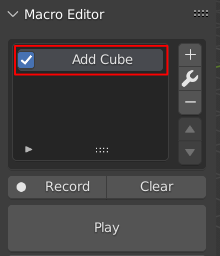
This is a Macro it can be activated and deactivated through the checkbox and won’t be executed if deactivated.
By double clicking on the label the Macro can be edited through a dialog.
Editing Macros
Double click on the Macro to open the editing dialog.
The dialog provides to different styles for operators commands or context changes.
Operators

Context
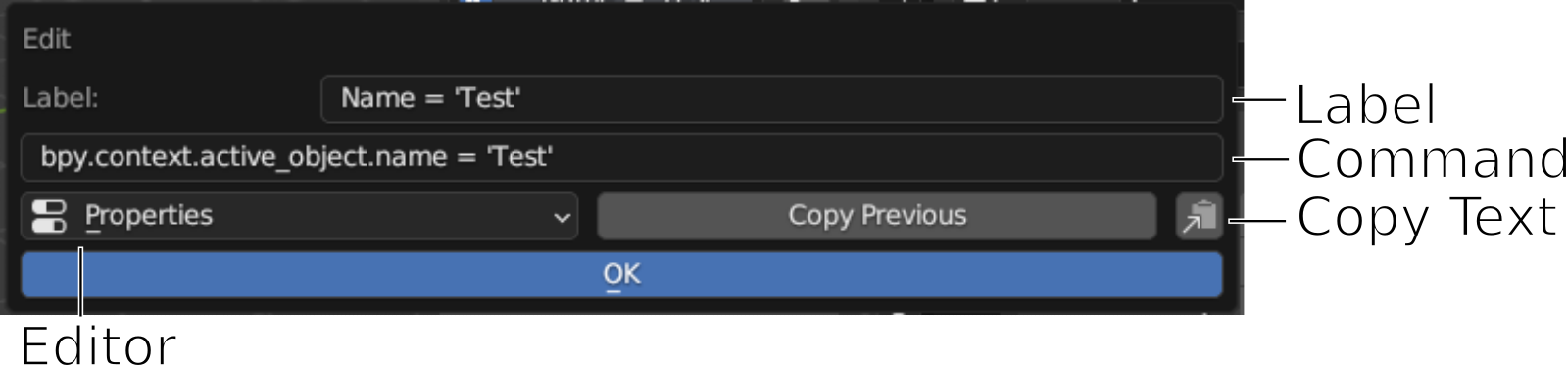
Label
The text that is displayed for this macro.
Command
The actual python code that will be executed for this macro.
Properties
The area/windows where this Macro will be executed.
Copy Text
Copies the command to the clipboard.
Execution Context
The context which the operator will be executed with.
Most of the time Execution is the right selection.
Hint
Sometimes it is helpful to set it to Invoke where the operator can access user input or startup a process that will not be executed immediately.
Copy Previous
Is a toggle button which will try to load the action executed before the recorded one if active.
Clear Operator
Removes all properties from an operator.
E.g. bpy.ops.transform.translate(value=(1,1,1), ...) becomes bpy.ops.transform.translate().
Operations

Add
Adds the last used command as a Macro.
If the Create Empty on Error setting is checked, an empty Macro will be created if no command is available (Shortcut: alt + ,).
On the first run a popup will appear asking if you want to enable Multiline Support.
Add Event
This will show a list of possible events that can be used to create more suitable actions.
Event List
Event |
Description |
|---|---|
Clipboard |
Adds a new Macro with content of the Clipboard to the selected Action |
Timer |
Wait the specified time and then continue playing the Action |
Render Complete |
Execute the blow Macros after a render completed rendering |
Loop |
Loop the below Macros the given amount of time. |
EndLoop |
Marks the end of the loop block |
Select Object |
Gives the option to select a specific Object in the Scene |
Run Script |
Select a text from the Texteditor that is saved internally and will be executed |
Remove
Remove the selected Macro
Move Up
Moves the selected Macro one position up
Move Down
Moves the selected Macro one position down
Record
When pressed the Action Recorder switches to recording mode and tries to catch every operation you do in Blender until the Stop-Button is pressed.
The recorded operation will automatically be added as macros.
Clear
Removes all macros from the selected Action.
Play
Executes all macros from the selected Action (Shortcut: alt + .).
Local to Global
Moves the selected Action to the Global Panel. A popup appears to select the Category to append the Action to.
The “Settings/Buttons” below Local to Global decided weather to Copy the Action (keep this Action in Local and move an exact copy it to the Global section) or Move (removes this action from Local and append it to the Global section).
Multiline Support
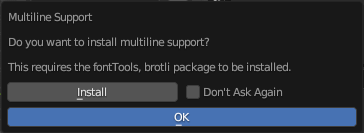
First Popup to install Multiline Support
If Don't Ask Again is checked it can be later installed in the Preferences
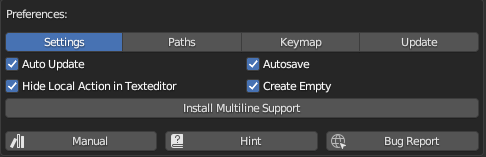
Later install in the Preferences
If Install is pressed the Popup will change to the following:
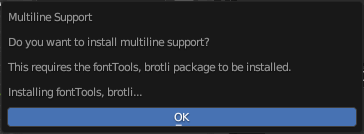
After the installation finished the following appear: