First Action
Adding Actions
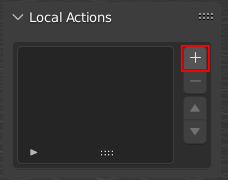
To add an Action press the +-Button.
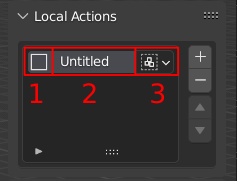
A new Action appears in the list. Which consist of 3 Parts.
- 1. Icon
By clicking on the Icon it can be changed to customize the look of the action.
- 2. Label
By double-click on the Label it can be changed and by default it will be
Untitled.- 3. Execution Mode
This can be changed to execute between
Group-Execution andIndividual-Execution.Group: Performs the current action on all selected objects without separating them (Default Behavior)
Individual: Performs the current action on all selected objects individually. Therefore, the action is executed as many times as there are selected objects.
Adding Macros
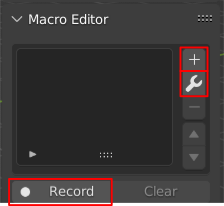
To add a Macro 4 Options are available.
- ➕ Add
This will add the latest used command as a Macro. If the setting
Create Empty on Erroris checked it will create an empty Macro if no command is available. (Shortcut:alt + ,)- 🔧 Event
This will show a list of possible events. E.g. with the
Clipboard-Event the content of the Clipboard is imported as a Macro. Also see Event List- 🔴 Record
This will record all commands that you execute until the
Stop-Button is pressed, which appears after record is pressed.- Context Menu
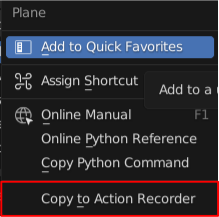 By right-click on a property or button the context menu appears with a new option:
 Copy To Action Recorder. This will add the right-clicked property/button as a Macro.
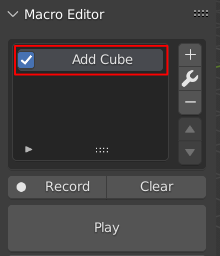
We now have a Macro. This can be activated and deactivated through the check-box. By double-click on the label the Macro can be edited through a dialog.